Uploading Data
-
Navigate to the Data Upload Page:
- Log in to your account.
- At the top-right hand corner, click on the
 icon.
icon. - Click on the 'Add a dataset' option from the main menu.
-
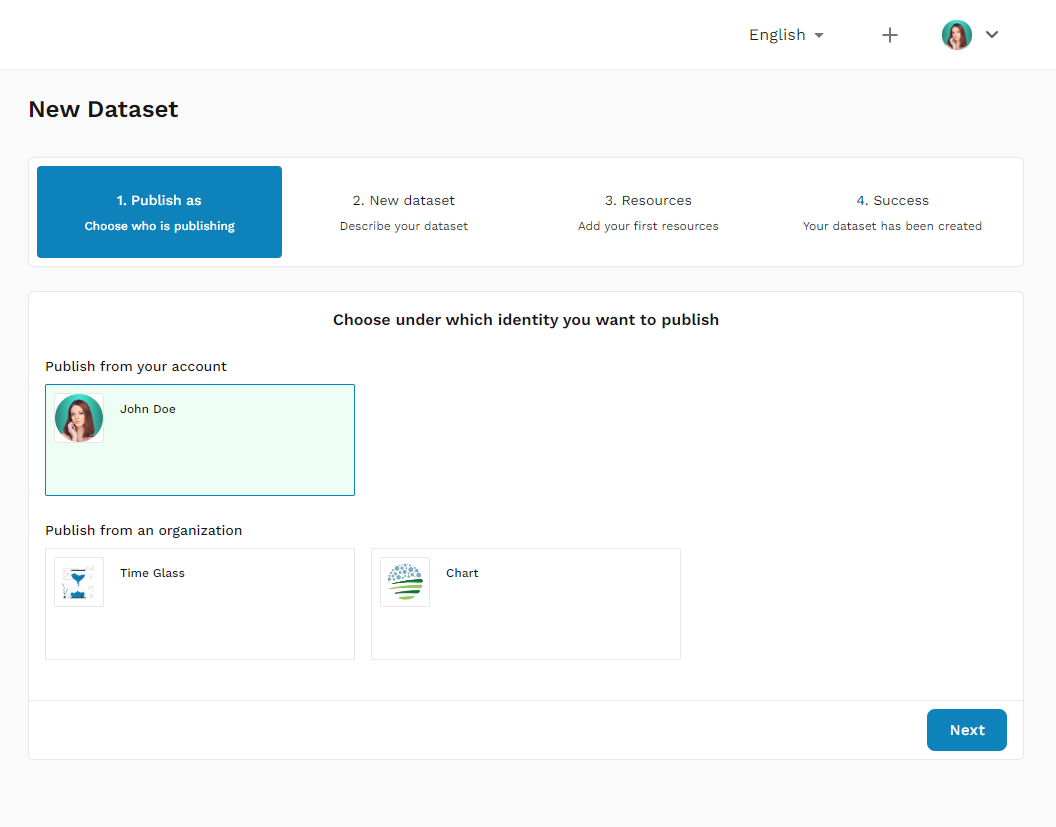
Publish as:
-
Choose who is publishing: Select whether you are publishing from your account or on behalf of an organization.
-
Click 'Next' to proceed.
-
-
New Dataset:
-
Describe your dataset
Title:
- Provide a clear and concise title for your dataset.
Description:
- Write a detailed description of your dataset, including its purpose, content, and any relevant context. Use the rich text editor to format your description for better readability.
License:
- Select the appropriate license for your dataset from the dropdown menu. To learn more about licensing options and what they entail, click here to read more.
Update Frequency:
- Indicate how often the dataset is updated by selecting an option from the dropdown menu. If unsure, you can select 'Unknown.'
Tags:
- Add relevant tags to categorize your dataset and improve its discoverability. Enter a tag name and press 'Enter' to add it.
Temporal Coverage:
- Specify the time period that the dataset covers by entering the start and end dates in the provided fields.
Category:
- Select a category that best describes the dataset from the dropdown menu.
Spatial Coverage:
- Describe the geographic area that the dataset covers. This is the specific country where the dataset was collected.
Agreement:
- By proceeding, you agree to Open South's Data Provider Agreement. Make sure to read and understand the terms before continuing.
Next Step:
- Once all the required fields are completed, click the 'Next' button to proceed to the 'Add your first resources' step.
-
-
Resources:
- Add your first resources: Click the 'Choose File' button to upload the dataset file from your computer.
- The allowed file types include csv, .json, .xlsx, .zip.
- Click 'Upload' to add the file to your dataset.
-
Success:
- Once the dataset has been successfully uploaded and all required information is provided, you will see a confirmation message indicating that your dataset has been created.