Manual Login
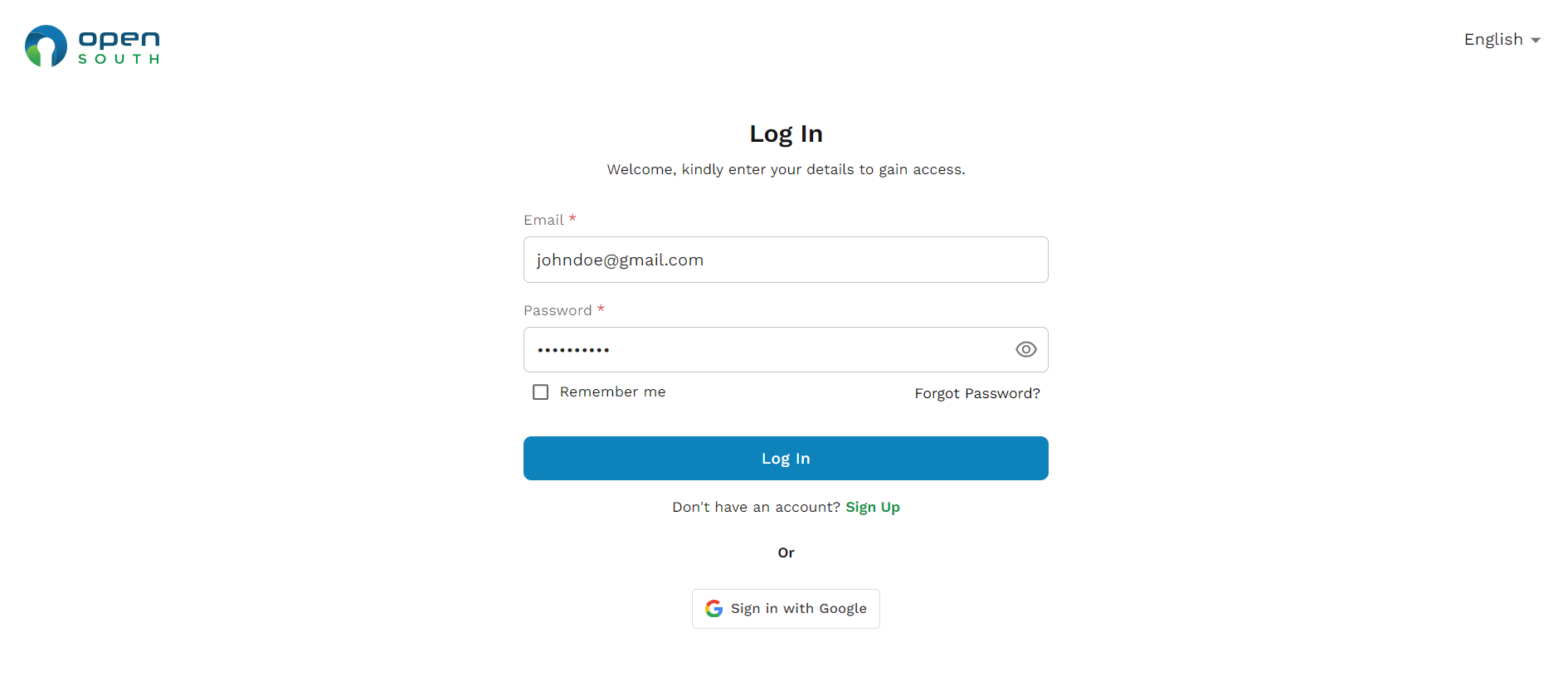
- Go to the Login Page: Click the 'Login' button on the homepage.
- Enter Credentials: Enter your username and password.
- Access the Account: Click the 'Log In' button to access your dashboard.
Sign in with Google
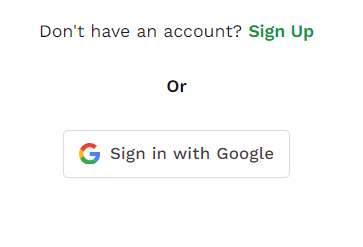
- Select Google Login: Choose the 'Sign in with Google' option located below the 'Log In' button.
- Google Account Selection:
- If you are not already logged into a Google account, you will be prompted to enter your Google email and password.
- If you are logged in with multiple Google accounts, select the one you want to use for signing into the platform.
- Permissions and Consent:
- Review the permissions requested by Open South to access your Google account details necessary for the login process.
- Click 'Allow' to grant these permissions if you agree to the terms.
- Complete the Sign-In: After granting permissions, Google will authenticate your credentials and redirect you back to the Open South platform.
- Access the Account: You will be automatically logged into your account and redirected to your dashboard.
Logging Out
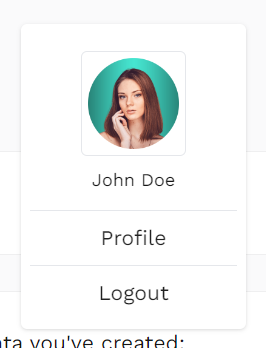
- Navigate to Account Settings: Click on your profile picture or name in the top corner.
- Logout: Select the 'Logout' option from the dropdown menu to safely log out of your account.