Organization Management
Creating an Organization
To create an organization on the Open South platform, you must have an active account. Follow these steps to set up your organization:
-
Log In to Your Account:
- Ensure you are logged into your Open South account.
-
Navigate to 'Create Organization':
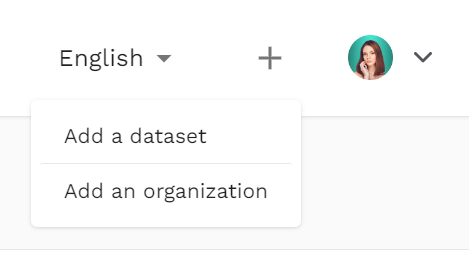
- From your dashboard, click on the + icon at the top corner and select the 'Add an organization' option.
-
Fill in the Organization Details:
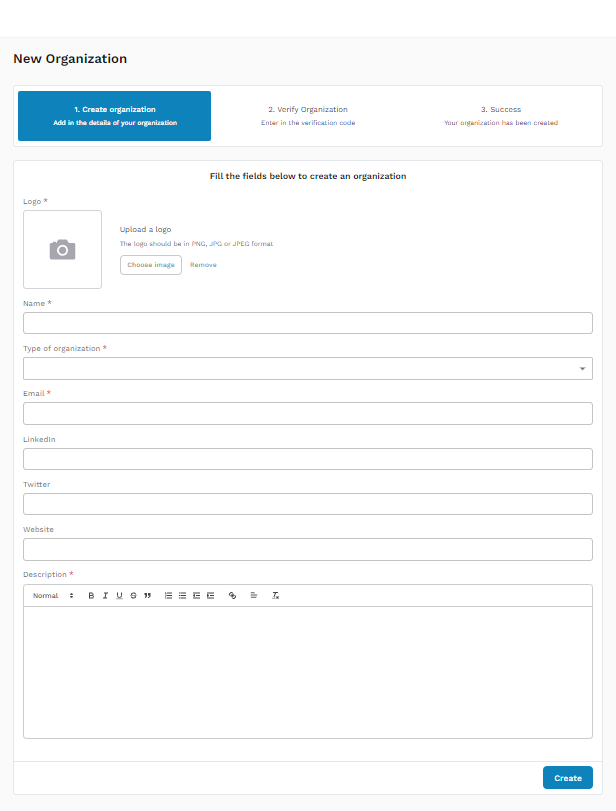
Logo:
- Upload a logo for your organization. The logo should be in PNG, JPG, or JPEG format. - Click 'Choose image' to upload the logo.
Name:
- Enter the name of your organization.
Type of Organization:
- Select the type of organization from the dropdown menu.
Email:
- Provide a contact email for your organization.
LinkedIn:
- Enter the LinkedIn profile URL for your organization (optional).
Twitter:
- Enter the Twitter handle for your organization (optional).
Website:
- Provide the URL to your organization's website (optional).
Description:
- Write a detailed description of your organization, including its mission, goals, and key activities. Use the rich text editor to format the description as needed.
Submit the Form:
- After filling in all the required fields, click the 'Create' button at the bottom of the form.
Verify Organization:
- You will receive a verification code via email. Enter this code in the provided field to verify your organization.
Success:
- Once verified, you will see a confirmation message indicating that your organization has been successfully created.